
Search the Community
Showing results for tags 'server status'.
Found 5 results
-
 Hi, Sorry odd question here. I have a couple VPS main systems that would be great If I could see the load levels in the "Network Status" section. The issue is the servers don't have Apache. They are just used for the main VPS management system.
 -
 I am using whmcs 7.0.1 I have set in whmcs admin Setup > Products/Services > Servers > edit, in "Server Status Address" add the path "http://www.myserverdomain.gr/status/" Server name : work HTTP: work FTP: work POP3: work PHP INFO: work server load: not availiable Uptime: not availiable When i type in my brower "http://www.myserverdomain.gr/status/" i show the values, but in "http://www.myserverdomain.gr/serverstatus.php" show me "Not availiable" Any idea?
 -
 Just curious, if you choose to allow visitors to see your server PHP Info. Did you open up /status/index.php and uncomment the snippet "phpinfo();"?
 -
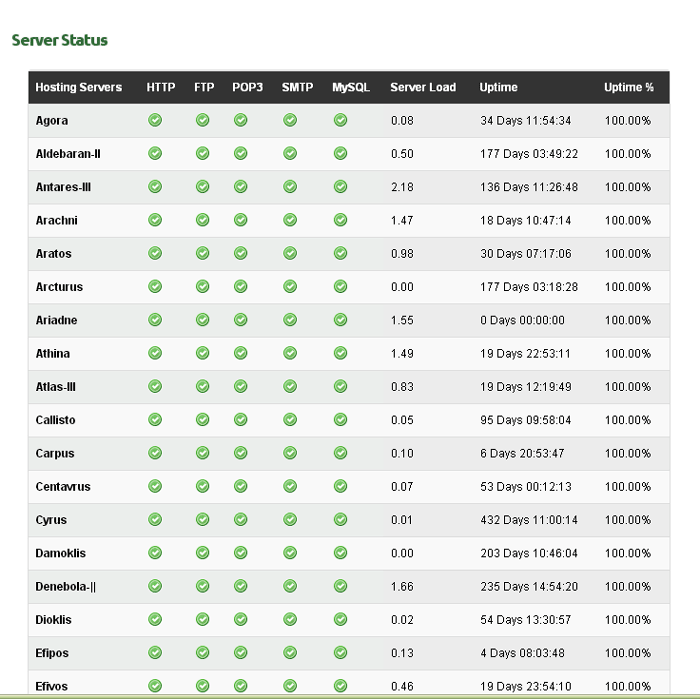
Advanced Server Status is an addon that is based on the default whmcs server status page in the client area. The addon is fully customisable. You can enter custom server groups, choose which ports you want to be monitored in each group, also shows the % uptime of each server etc. The features of the addon are: Advanced Server Status V.1.0 * Automated refresh of page, every x seconds (you can choose this via admin panel). * You can create unlimited custom groups of servers that you want to monitor (for example: cpanel servers, plesk servers, streaming servers etc). * You can choose which servers you want to add in each group. * You can choose which ports you want to be monitored in each group. * You can add unlimited new ports to be monitored, in each different group of servers. * There are 3 signs, green (for services that are online), grey (for services that are not monitored in a specific group), red (for services that currently have a downtime). * (%) Percentage of uptime is added, so as you can show to your clients the real % of each server. * Cron job in order old records of database to be deleted, so as to avoid huge amount of records in your database. * Easy install and setup in minutes * User friendly interface in admin area.

-
 Hello all, I wanted to share a quick workaround for the Server Status page for those that have Windows Servers. The Problem: If you are not already aware the 'Server Status' for WHMCS only works correctly with Linux endpoints. This is a language issue and not a WHMCS issue. The Impact: So...if you were to input the server status folder path (http://www.yourdomain.com/status) into the 'Server Status Address' within the Server configuration page it does work, however it creates more issues than it resolves. This is down to the status code only being able to pick up the port checks so 110/80 etc. The only issue is that because it does not pick up the 'Uptime' or 'Server Load' upon inspection by an untrained eye...i.e. your customer, it looks like the server has an issue as it will report as unavailable for the Load and register an Uptime of 00:00. This obviously can cause alarm to the customer. We used to just not populate the Server Address within the status field so that it showed nothing if anyone looked, however we decided that something was better than nothing...but did not want to cause any support tickets coming in with clients wondering what the 00:00 was. The Workaround: So....something is better than nothing for us Windows Server users! We decided that we would simply remove the offending code from the server status page and show what was working. In all honesty a client would only look at the nice shiny green ticks under POP3/HTTP etc anyway We also decided to remove the link for the PHP INFO. This is something that you may or may not want to do...it's entirely your choice. Before starting any changes remember to take a backup!!! To remove the code, find the 'serverstatus.tpl' file located in /templates/YourTemplateName/ Remove the following code: Lines 72-74 <th class="textcenter">{$LANG.serverstatusphpinfo}</th> <th class="textcenter">{$LANG.serverstatusserverload}</th> <th class="textcenter">{$LANG.serverstatusuptime}</th> Lines 84-86 <td class="textcenter"><a href="{$server.phpinfourl}" target="_blank">{$LANG.serverstatusphpinfo}</a></td> <td class="textcenter" id="load{$num}"><img src="images/loadingsml.gif" alt="{$LANG.loading}" /></td> <td class="textcenter" id="uptime{$num}"><img src="images/loadingsml.gif" alt="{$LANG.loading}" /> Be careful on Line 86. Do not remove the '<script>' or anything after it. In all honesty that should be on the next line down but as long as it's left there it will be fine. Save and upload (AFTER TAKING A COPY OF THE ORIGINAL!). You will be left with this: Yes, it does not have the Load or Uptime...but it has SOMETHING! Just to note...you could always replace the Server Load and Uptime with another check such has a different port and rename....just a thought for now Hopefully this helps someone! This is just our way of resolving this issue....I am sure there a more ways...potentially cleaner coding ways too!


